Overview

Why a structured onboarding matters

A clear onboarding process sets the tone for the entire client relationship. This SOP ensures every new client receives the same consistent, professional, and calm welcome — regardless of when they join or how complex the engagement is.

This document outlines every step from the moment a contract is signed through the end of Week 1, including who owns each action, which tools are used, and what the client should experience at every touchpoint.

Core Principle

The client should feel taken care of before they even ask a question. Every step in this SOP is designed to reduce friction, build confidence, and establish a professional working rhythm from day one.
Total Steps
14
Completion Window
5 days
Owner
Rose V.
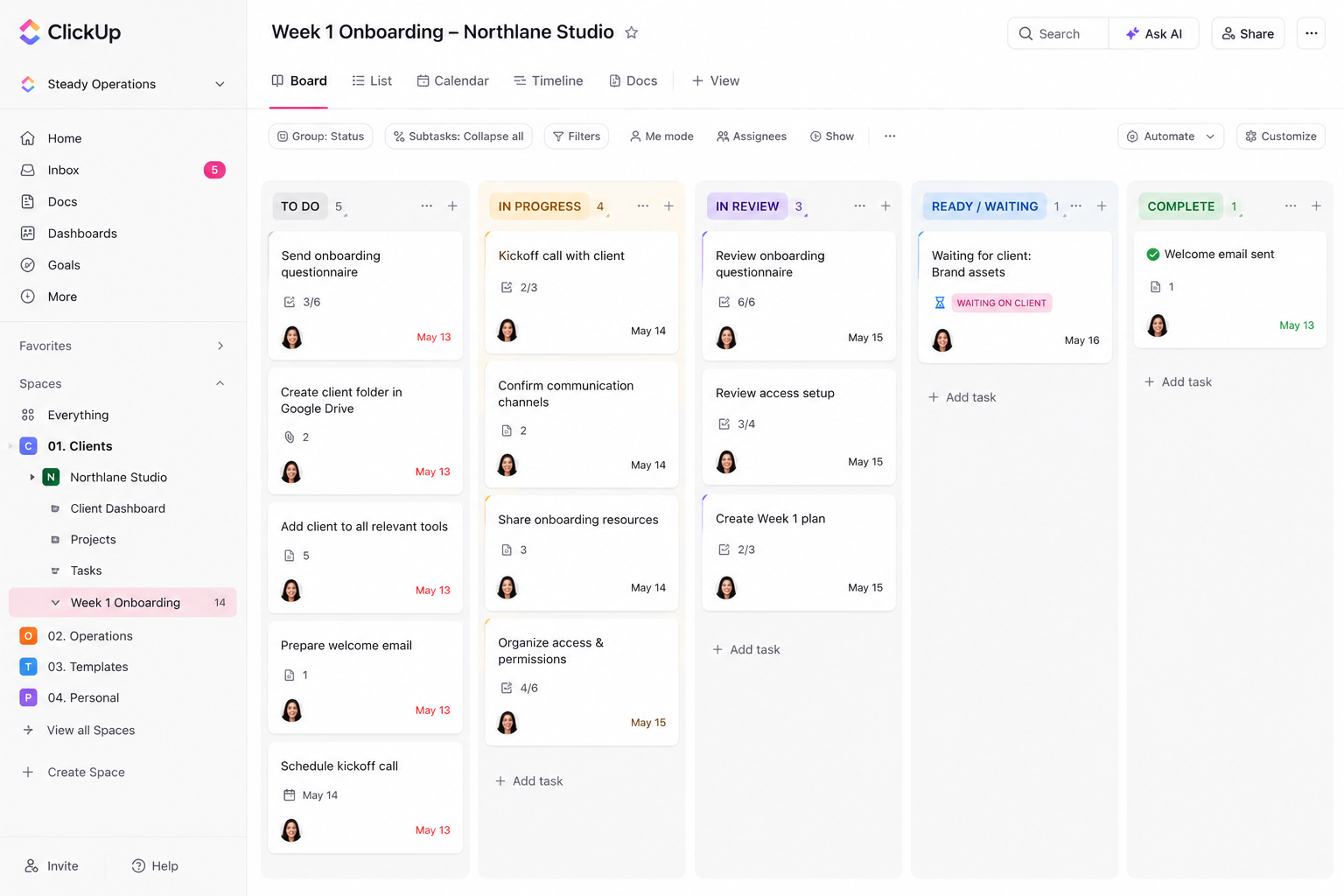
Onboarding overview board screenshot
Onboarding Overview Screenshot
Phase 1

Before Day 1 — Internal Prep

Once the contract is signed and the first payment is confirmed, the internal setup begins. The client doesn't see this phase — but they feel its results immediately.
01
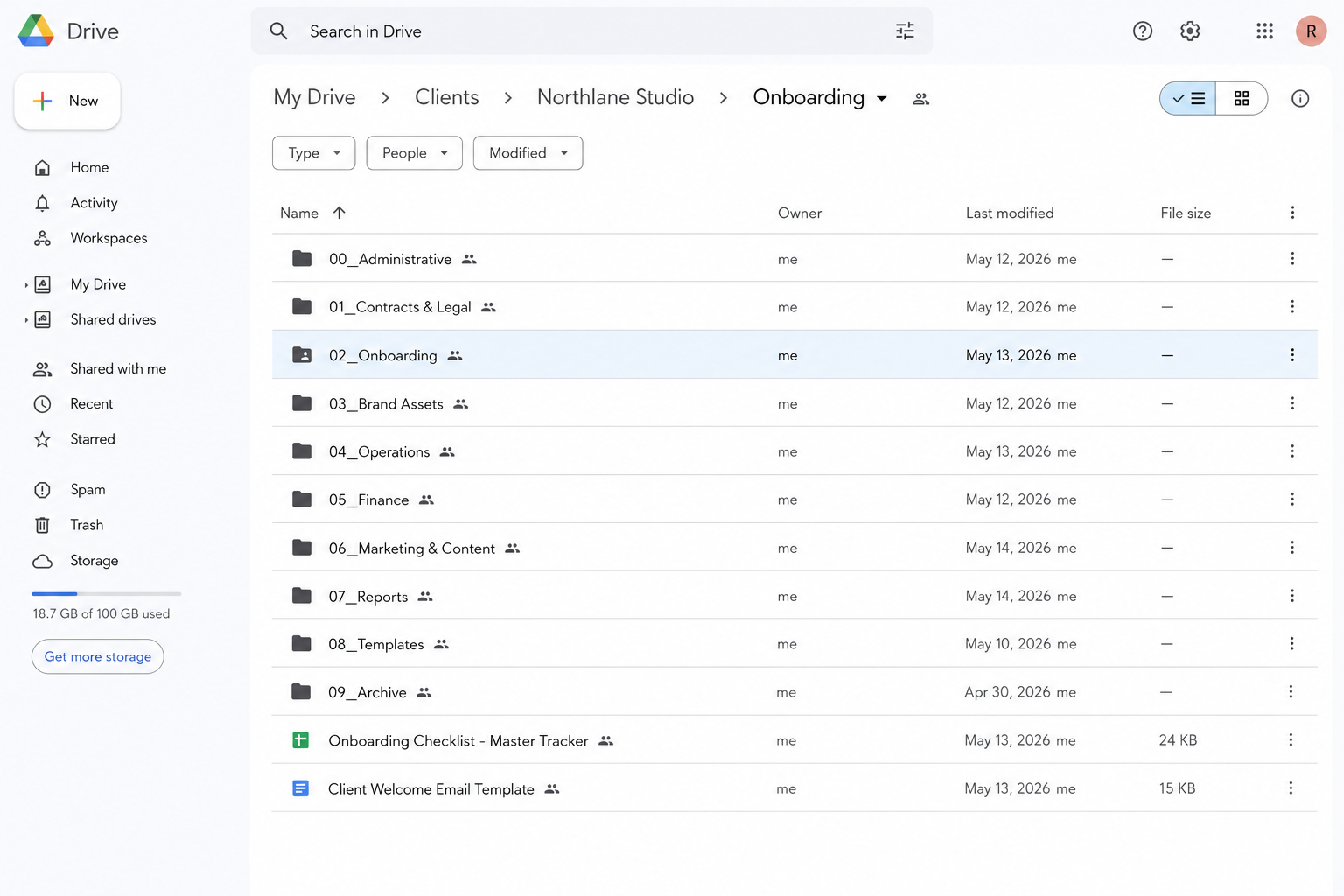
Create client folder in Google Drive
Use the standard folder naming convention: [ClientName] — [StartMonth YYYY]. Create subfolders: Admin, SOPs, Comms, Assets, Reports.
Google Drive Rose ~10 min
02
Set up client workspace in ClickUp
Duplicate the "New Client" template. Add client name, kickoff date, and assign recurring tasks. Set up the Week 1 checklist.
ClickUp Rose ~20 min
03
Add client to CRM and update pipeline
Move contact to "Active Client" in HubSpot or GoHighLevel. Tag with service tier, timezone, and start date. Assign follow-up sequences.
HubSpot / GHL Rose ~15 min
04
Prepare welcome email and intake form
Customize the welcome email template with the client's name, kickoff call link, and onboarding form. Review before sending — no copy-paste errors.
Gmail · Tally / Typeform Rose ~15 min
Google Drive folder structure screenshot
Google Drive Folder Structure Screenshot
Phase 2

Day 1 — The Welcome Experience

The client's first 24 hours should feel organized, warm, and professional. Everything they need should land in their inbox before they ask for it.
05
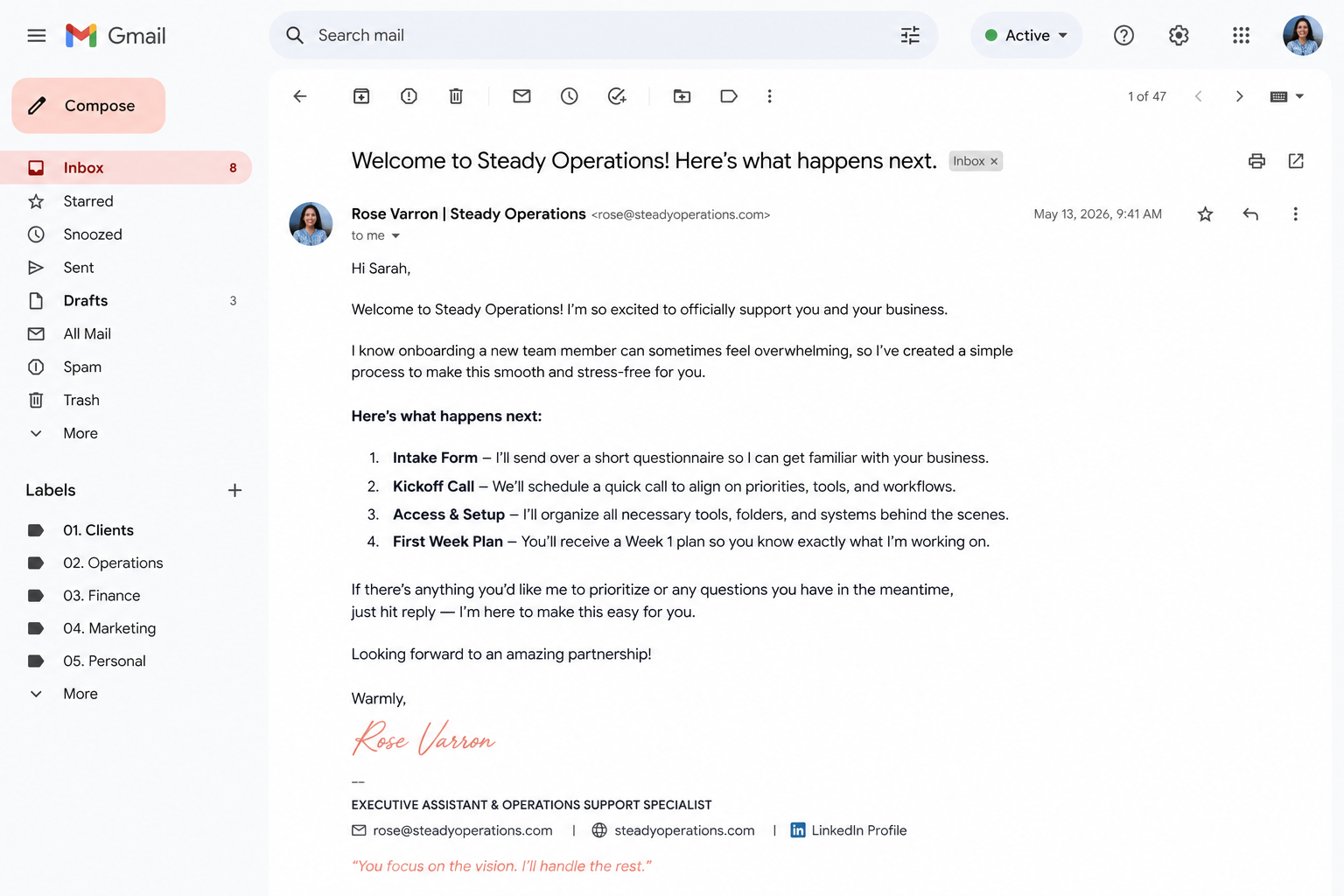
Send welcome email
Send the personalized welcome email by 9 AM client timezone. Include: warm welcome, link to onboarding form, kickoff call invite, and contact info.
Gmail Rose Day 1, 9 AM
06
Share onboarding form
Intake form covers: communication preferences, key tools, logins needed, ongoing projects, priorities, and preferred meeting cadence.
Tally / Typeform Client Due: Day 2
07
Send kickoff call invitation
Use Calendly link with a 60-minute window. Kickoff call agenda is attached. Confirm receipt and ask for any agenda additions from the client.
Calendly · Google Calendar Rose Day 1
Welcome email template screenshot
Welcome Email Template Screenshot
Phase 3

Week 1 — System Setup & Kickoff

08
Review completed intake form
Read through all responses before the kickoff call. Prepare clarifying questions. Note priority items and any red flags to address.
RoseDay 2–3
09
Run kickoff call
Cover: working rhythm, communication channels, top 3 priorities, tool access needs, recurring cadence, and how to escalate urgent items.
Zoom / LoomRose + ClientDay 3–4
10
Send kickoff call summary + action items
Email a clean recap of decisions made, next steps with owners and due dates, and confirmed working schedule. Archive in client folder.
Gmail · Google DriveRoseSame day as call
11
Request tool access and logins
Request access to all tools identified in intake. Use LastPass or 1Password for secure credential sharing. Document access list in client admin folder.
LastPass · 1PasswordClient → RoseDay 3–5
12
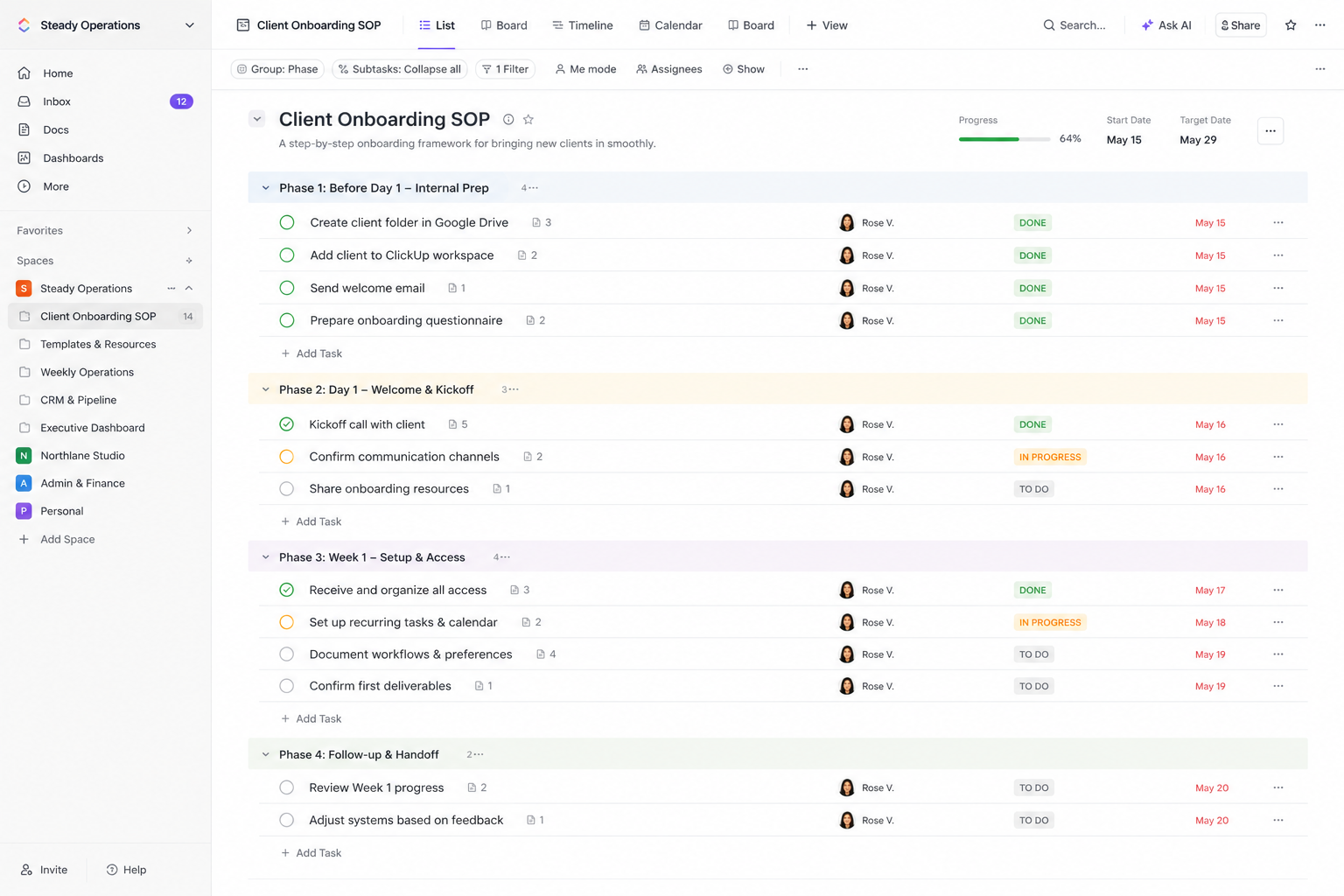
Set up recurring tasks and calendar blocks
Create all recurring ClickUp tasks. Block calendar for standing meetings, weekly check-ins, and focus time. Share recurring schedule with client.
ClickUp · Google CalendarRoseDay 4–5
Week 1 ClickUp board screenshot
Week 1 ClickUp Board Screenshot
Phase 4

End of Week 1 — Check-in & Settle

13
Send end-of-week check-in message
A brief, warm message summarizing what's been set up, what's in motion, and anything still pending. Invite feedback on the experience so far.
Gmail · SlackRoseDay 5
14
Mark onboarding complete in CRM
Update contact record: onboarding complete, tools confirmed, recurring tasks live. Move to "Ongoing Support" stage and set next check-in date (Day 30).
HubSpot / GHLRoseDay 5
Quality Check

Before marking onboarding complete: confirm all tool access is live, all recurring tasks are set, the client has responded positively, and the kickoff summary has been filed.

Tools Used

Tech stack for this workflow

📁
Google Drive
Client folder structure and document storage
Primary
ClickUp
Onboarding task tracker and recurring tasks
Primary
📧
Gmail
Welcome emails, summaries, client communication
Primary
📅
Calendly + Google Calendar
Kickoff call scheduling and recurring blocks
Scheduling
🔗
HubSpot / GoHighLevel
CRM pipeline and contact updates
CRM
📋
Tally / Typeform
Client intake form
Forms
Templates

Supporting templates & documents

Included Templates
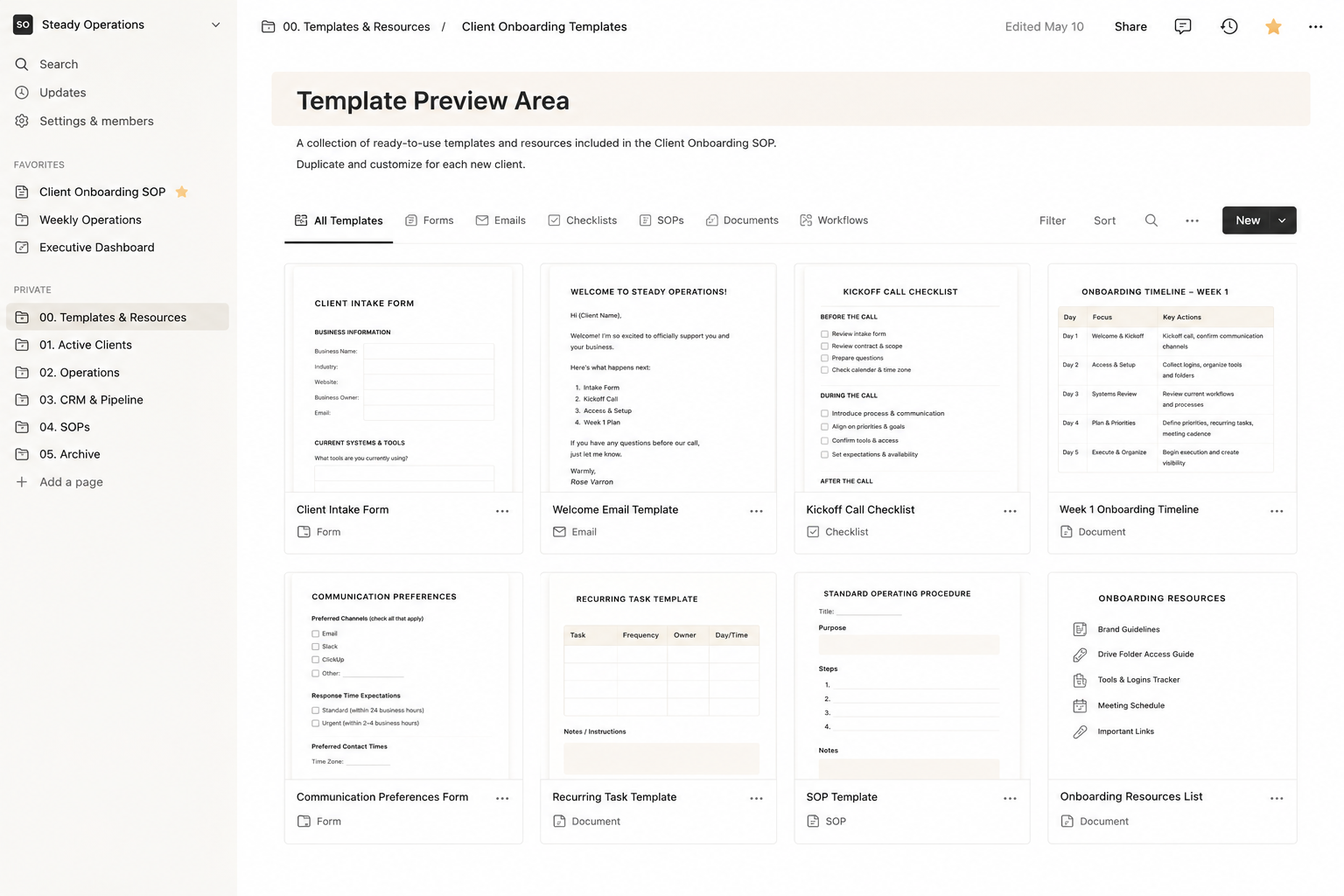
  • Welcome email template
  • Client intake form structure
  • Kickoff call agenda
  • Kickoff call recap email
  • Google Drive folder structure
  • ClickUp onboarding task template
What This Replaces
  • Manual, inconsistent onboarding
  • Forgotten steps or delayed setup
  • Tool access delays
  • Unclear working expectations
  • Messy first impressions
  • Scattered client information
Template preview screenshot
Template Preview Area